How to create searchable PDFs from photos, images and PDF files in MacOS Finder

Updated for OwlOCR 7 · August 13, 2026
The current OwlOCR 7 searchable PDF workflow
OwlOCR 7 keeps PDF recognition on your Mac. Apple Vision supplies positioned text for searchable PDF export while the original visible pages remain intact.
- Open a scanned or image-based PDF in OwlOCR, then choose the page whose text you need.
- Use free OwlOCR Core for the current page. Pro adds OCR All and batch processing for larger documents or collections.
- Export a searchable PDF to add an invisible text layer, or use the Create Searchable PDF Finder Quick Action for a file-first workflow.
The optional local OCR AI engine can provide a second reading of difficult material. Apple Vision remains the positioned recognition path used for searchable PDF output.
Read the complete PDF OCR guide →Historical article
Original guide retained for context
The interface and feature names below may describe an earlier OwlOCR release. Follow the updated OwlOCR 7 workflow above for current behavior.
Creating a searchable PDF from a scanned paper, photo of a paper, screenshot or any other image content, typically consists of a few steps.
1. Find out what is written in the image and where. This done by a technology called Optical Character Recognition or OCR.
2. Create a PDF file where you include the image and an invisible layer of text precisely where the text is in the image.
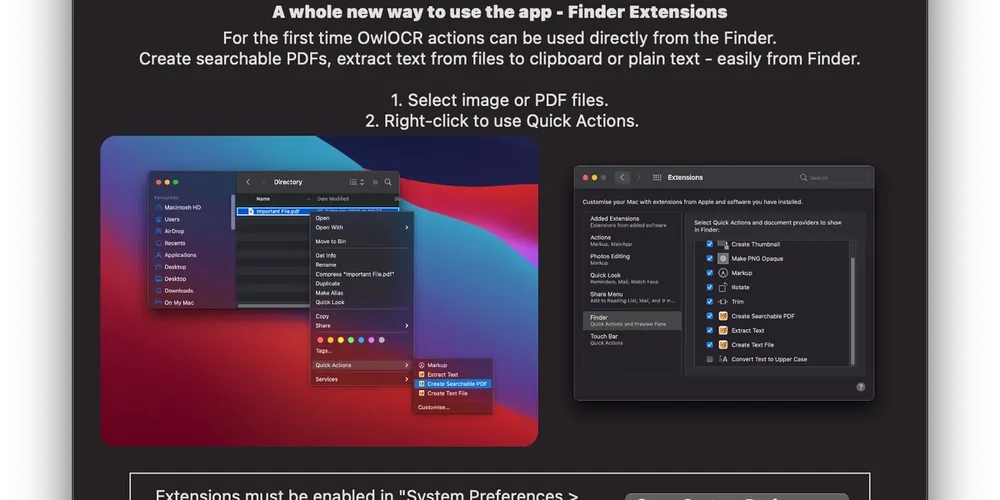
OwlOCR has provided the tools to do this before, but with version 4.5 we are for the first time including Finder Extensions, a way to do the steps above quickly and easily, right from the Finder.
Enabling Finder Extensions in MacOS
MacOS requires the user to select and enable the Extensions they wish to see when they are working in their Finder. Fortunately, this is easy to do and you only have to do it once.
1. Navigate to System Preferences -> Extensions -> Finder.
2. Enable the OwlOCR extensions by checking the box for Create Searchable PDF, Extract Text and Create Text File. Or only the ones you wish to use.
Using Finder Extensions in MacOS
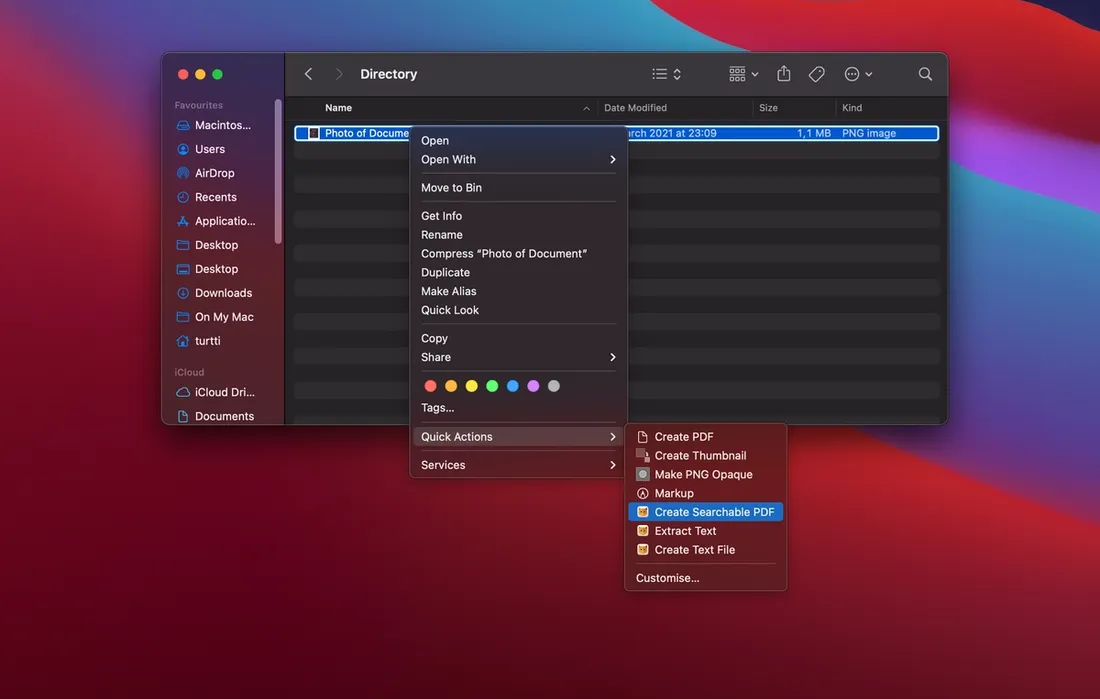
Now that the relevant extensions have been enabled you should see them as Quick Actions options in Finder when selecting image and/or PDF files. Please note that for other file types or directories the options are not displayed.
1. Open a Finder window and navigate to a directory where you have one or more image and/or PDF files.
2. Select the files, right-click and choose Quick Actions > Create Searchable PDF.
3. The action extension starts processing the files and displays a simple UI in the window to let you know what's happening. The action creates searchable PDFs for each of the files selected.
Demo video of this in practice
To see a demo of this in practice check out this video:
https://www.youtube.com/watch?v=GeT4WqO_htg