How can I use OCR to capture text from the Mac screen?

Updated for OwlOCR 7 · August 13, 2026
The current OwlOCR 7 screenshot workflow
OwlOCR 7 can recognize text that is visible but not selectable in a video, presentation, image, website, or app. Apple Vision processes the capture locally on your Mac.
- Allow OwlOCR to use Screen Recording in macOS Privacy & Security settings.
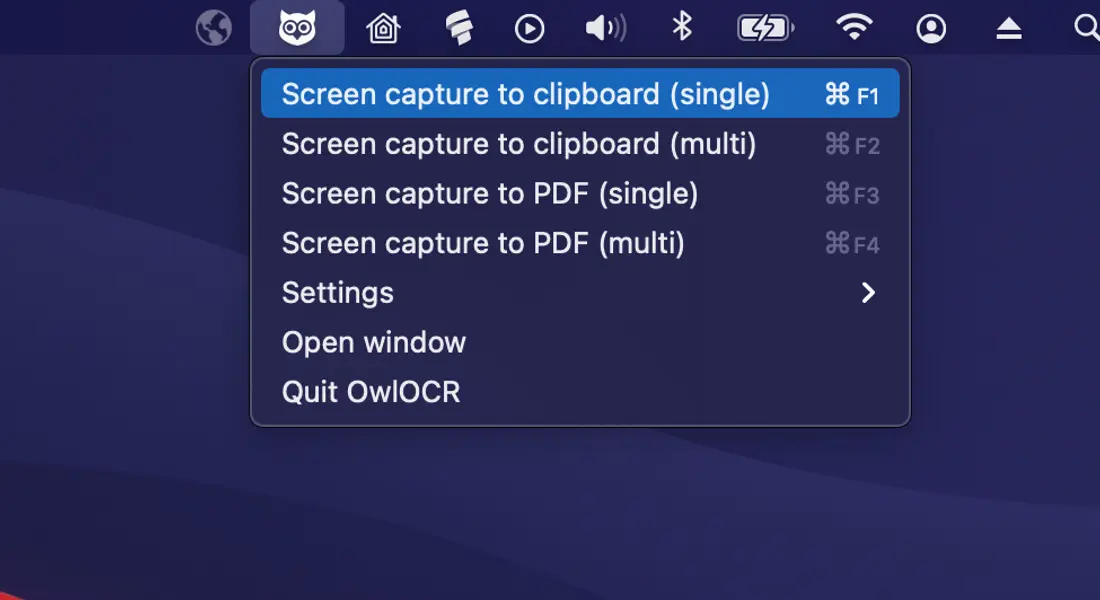
- Start a single capture from OwlOCR or its menu bar controls, then drag around the exact text you need.
- Copy, review, or edit the recognized text. Free Core covers a single screenshot; Pro adds sessions with three or more captures.
For noisy screenshots or unusual layouts, Pro also offers a second local OCR AI engine. Neither recognition path sends the source image to an online OCR service.
Read the complete screenshot OCR guide →Historical article
Original guide retained for context
The interface and feature names below may describe an earlier OwlOCR release. Follow the updated OwlOCR 7 workflow above for current behavior.
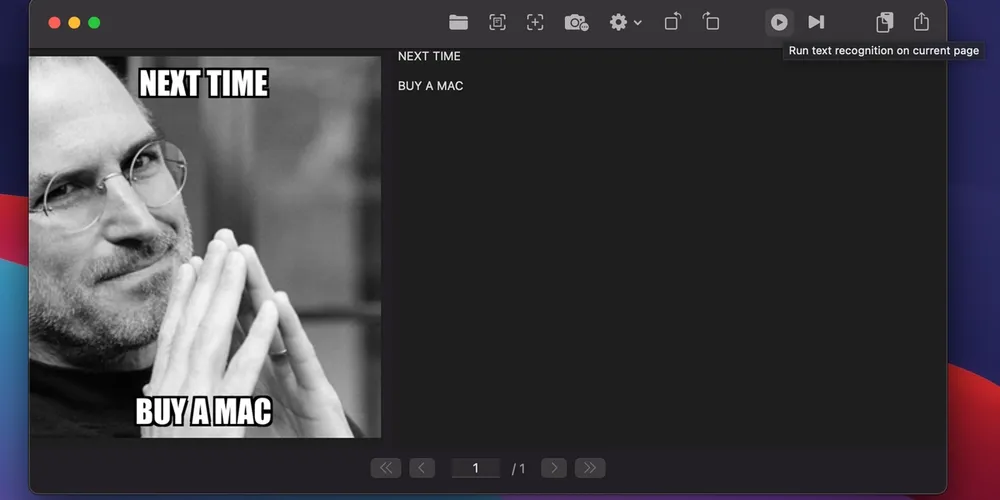
Images, video and some other content, like slides in Zoom conferences, don't allow selecting and copying text. This is where OwlOCR can help.
- Press Cmd+F1 or select Screen capture to clipboard from the menubar or toolbar.
- Select area on screen.
- Results appear in OwlOCR and are also copied to the clipboard. You may then simply paste your text where you need it (depending on app, typically with Cmd+V).
Optical Character Recognition (OCR) is used to extract text from the screen area. The processing is done right on your Mac for near instantaneous results!
If you run into any trouble, be sure to check the support pages.