How to run OCR text recognition on an image on the Mac?

Updated for OwlOCR 7 · August 13, 2026
The current OwlOCR 7 image-to-text workflow
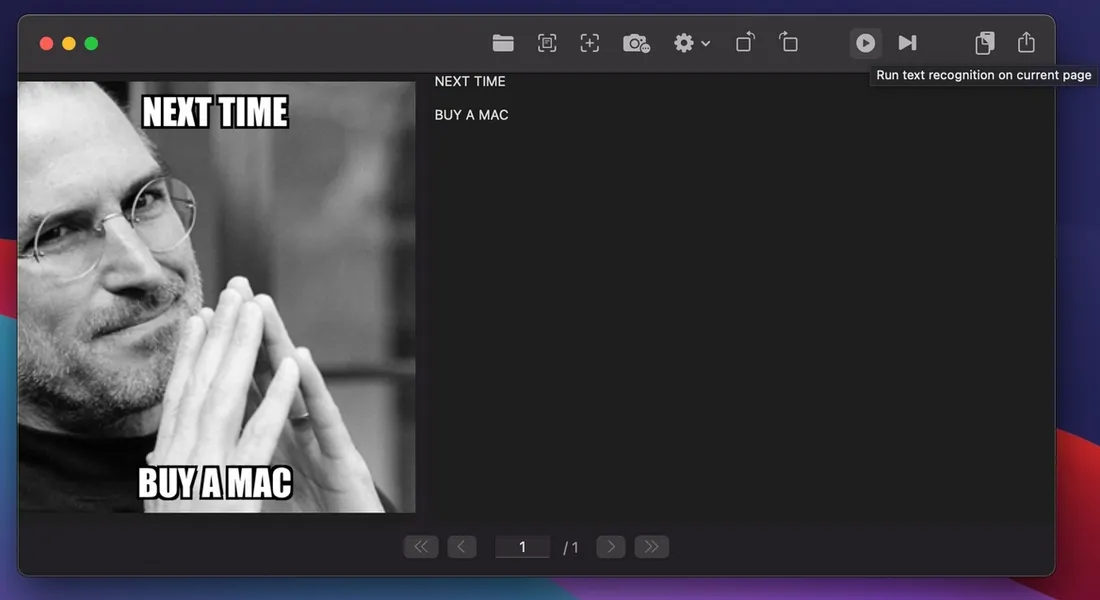
Open an image, scan, or photo in OwlOCR 7 and run Apple Vision OCR on the current page. The recognized text stays editable and can be copied into the app where you need it.
- Open or drop an image into OwlOCR and select the current page.
- Run OCR with free Core, then compare the result with the source and make any needed edits.
- Use Pro OCR All or batch workflows for a collection of images, or try local OCR AI when a difficult scan needs another interpretation.
Apple Vision is the best default when you need text boxes or positioned searchable PDF output. OCR AI returns clean page text and runs locally after its model is installed.
See what free OwlOCR Core includes →Historical article
Original guide retained for context
The interface and feature names below may describe an earlier OwlOCR release. Follow the updated OwlOCR 7 workflow above for current behavior.
Running text recognition on an image on the screen
This is a very common use case that one can run into daily. There's an image already displayed on your screen and you need to run text recognition on it.
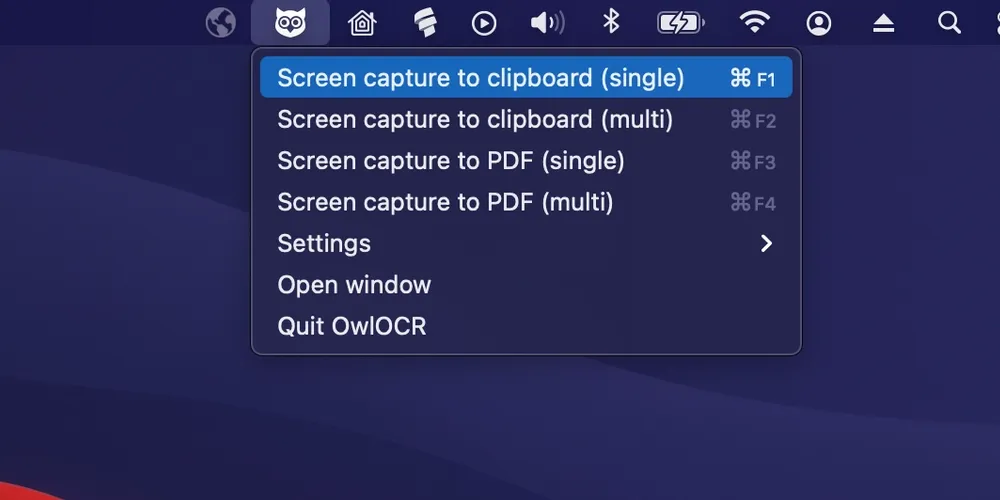
Simply using the screenshot tool of OwlOCR will cover it nicely.
Running text recognition on an image on the clipboard
If you need to capture all text from an image and it's already on your clipboard or it's most convenient for you to copy it to the clipboard, you can easily input it to OwlOCR.
To use an image from the clipboard in OwlOCR, select New from Clipboard (Cmd + N) from the menubar. After you've input your image, start the text recognition from the toolbar for the currently selected page or for all pages.
Running OCR text recognition on an image file on the Mac
There are a couple easy ways to select your image files to OwlOCR.
- Drag one or more image file(s) to the OwlOCR window.
- Choose Open File from the toolbar or menubar to browse and select the files.
The images should appear in your OwlOCR. Then simply start the text recognition from the toolbar for the currently selected page or for all pages.
If you run into any trouble, be sure to check the support pages.